Guide
Guide
Everything you need to go from a bare model to finished, engine-ready textures. New to Pawlette? Start with Getting started; it takes about five minutes.
Start here
Getting startedOpen a model, paint your first layer, save and export.
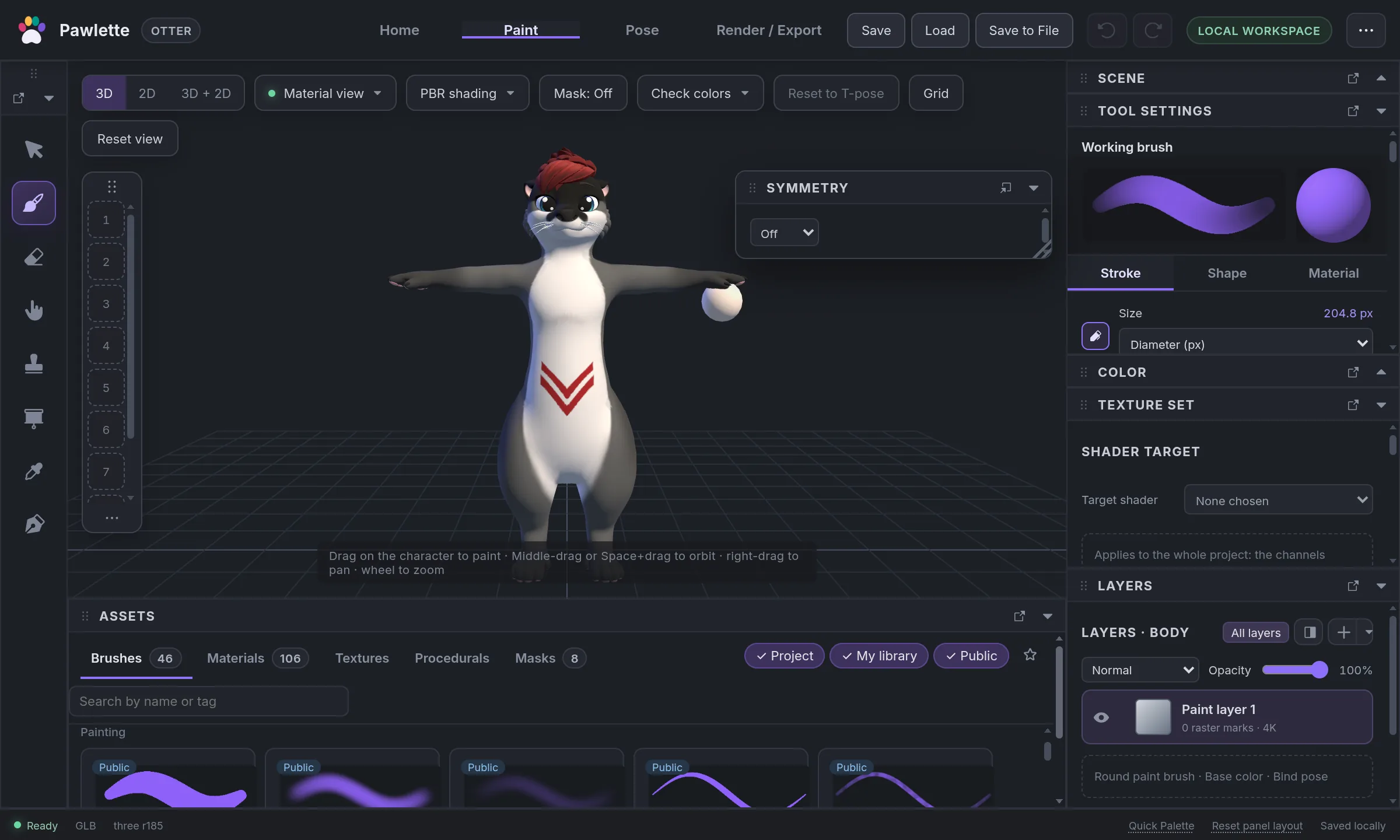
The editor at a glanceWorkspaces, panels, views and moving the camera.
Painting
Painting toolsBrush, Eraser, Smudge, Clone, Projection, Picker, Path and symmetry.
Brush settingsStroke, Shape and Material tabs, pen dynamics, presets and ABR import.
Color and swatchesThe Color panel, swatch sets, palette files, harmonies and ramps.
Layers
Layers and fillsTexture sets, paint, fill and path layers, blend modes and mappings.
Models and outfitsClothing, appearances, hidden parts and the Scene panel.
Masks and effectsLayer masks, smart and vector masks, mask effects and layer effects.
Shader targets and effectsChannels for your shader, alpha modes, and Poiyomi decals and emissions.
The Assets drawerYour own and public brushes, materials, textures and masks, and Unity material import.
Finish
PosingBend bones, set blendshapes and reset to the T-pose.
Exporting texturesTemplates for Unity, Poiyomi, Quest, Unreal and glTF.
Saving and projectsBrowser storage, project files, cloud storage and sharing.
PacksShare outfits and texture work as a .pawpack for someone else's model.
Workflows
DecalsLogos, blush and tattoos that stay separate and export to Poiyomi decal slots.
Glowing emissionsGlowing markings and eyes you can recolor, toggle and export to Poiyomi slots.
VRChat avatarsTexture sizes, Poiyomi materials, lenses, hair, clothing and Quest.