Guide · Finish
Exporting textures
Pawlette exports 8-bit PNG textures at your project's resolution: one channel at a time, or a set of files packed the way a particular shader expects.
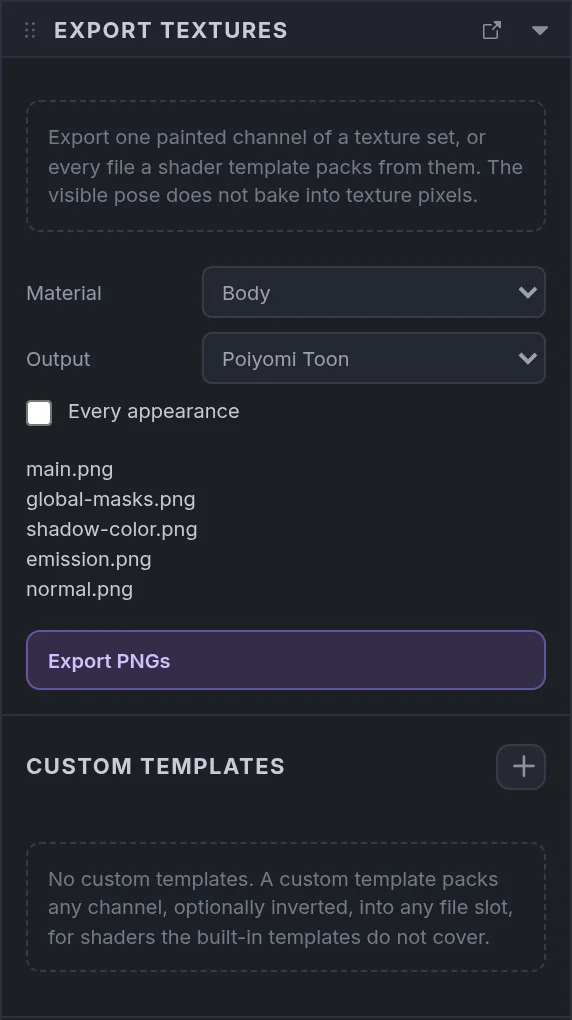
Export a texture set
- Open the Render / Export workspace.
- In Export Textures, choose the Material (the texture set).
- Choose an Output: a single channel or a template. The template for the project's target shader is listed first.
- Choose Export PNG or Export PNGs. Your browser downloads the files.
For a template, the panel lists the files it will write before you export. Repeat for every texture set. Files are named <project>_<material>_<file>.png. If the project has appearances, tick Every appearance to export them all; each file name then includes the appearance's name.
Built-in templates
Every template writes one PNG per row below. "Smoothness" is inverted roughness.
| Template | Files |
|---|---|
| glTF (ORM) | Base color (opacity in alpha) · ORM: occlusion, roughness, metallic · Emissive · Normal |
| Unity Standard | Albedo (opacity in alpha) · Metallic with smoothness in alpha · Emission · Normal |
| Poiyomi PBR | Main (opacity in alpha) · Packed maps: metallic in red, smoothness in green · Emission · Normal |
| Poiyomi Toon | Main (opacity in alpha) · Global masks: Mask 1 to 4 in red, green, blue and alpha · Shadow color · Emission · Normal |
| Quest (Toon Standard) | Base color (opaque) · Metallic, occlusion and smoothness packed · Emission · Normal. Capped at 1024 px, with a note on the texture memory it uses. |
| Unreal Engine (ORM, DirectX normal) | Base color (opacity in alpha) · ORM: occlusion, roughness, metallic · Emissive · Normal in the DirectX convention |
Normal maps are OpenGL-style (+Y), as the editor shows them, in every template except Unreal's.
Decal and emission effects
The Poiyomi Toon and Poiyomi PBR templates also write each effect that sits in a shader slot to its own file: decal-0 to decal-3, and emission-1-map and emission-1-mask up to slot 3. Decal images are sized to a power of two between 256 and 2048 px. These effects are left out of the main textures, so Poiyomi does not apply them twice.
Templates without slots, such as glTF or Quest, bake every effect into the textures. The panel says which: "Baked into textures for glTF (ORM): Glow (emission)".
Single channels
Under Channels, any painted channel can be exported on its own as a PNG. That includes the normal map derived from height. Use this when your shader wants a layout no template covers, or when you want to keep working on a texture in an image editor.
Custom templates
Choose New custom template to build your own packing. Give it a name and an optional Size limit (1024 or 2048), then add up to eight files. For each file you set:
- a File name;
- its Pixels: RGBA or Gray;
- which channel goes into each slot, with Invert for shaders that want smoothness instead of roughness, or a flipped normal.
Effect slots switches let a custom template write decal and emission slots as separate files too. Custom templates are saved and appear under Output with the built-in ones.
Tip: export after a Save. Then the textures you ship always match a project you can open again.