Guide · Reference
Pen, touch and phones
Pawlette works with a mouse, a drawing tablet, a touch screen or a phone. Pens get pressure, tilt and twist; touch gets gestures; and small screens get a compact layout.
Drawing tablets and pens
- Pressure: the pen buttons next to Size, Opacity and Flow in the Stroke tab make each one follow pressure. Minimum sets the value at the lightest touch.
- Tilt, twist and more: Brush dynamics (Stroke › Advanced) can drive almost any setting from tilt, tilt direction, twist or tangential pressure. The Shape tab's Pen tilt options turn or flatten the tip as the pen leans.
- Eraser end and barrel button: choose what they do under Stroke › Advanced › Pen. The eraser end uses the Eraser by default. A barrel button with no tool assigned pans the view, like the right mouse button.
- Moving the camera: hold Space and drag with the pen tip to orbit, or add Shift to pan.
Touch gestures
| Gesture | Action |
|---|---|
| One finger on the model | Paint with the current tool |
| One finger off the model | Orbit |
| Two fingers | Pinch to zoom, move to pan |
| Two-finger tap | Undo |
| Three-finger tap | Redo |
A tap counts when every finger lifts quickly without moving far. Putting a second finger down during a stroke cancels the stroke and starts a pinch instead, so a stray stroke never sticks.
Palm rejection
Palm rejection is automatic. While a pen touches the screen or hovers over it, and for a moment after, touches on the viewport count as your resting hand and are ignored. Touches on the panels always work.
Phones and small screens
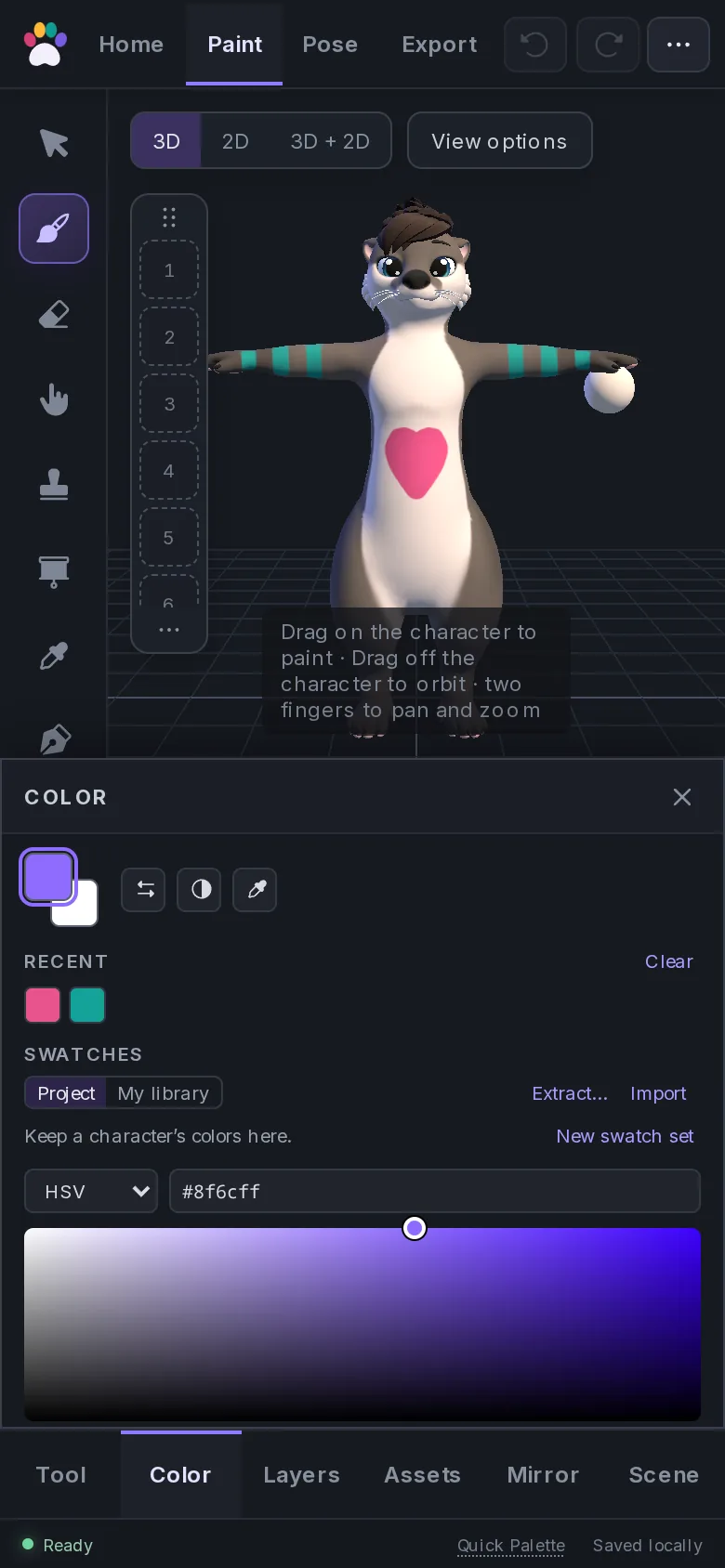
When the window is narrower than 640 px or shorter than 500 px, Pawlette switches to a compact layout:
- The tool rail stays on the left.
- The panels move into a tab bar along the bottom: Tool, Color, Layers, Scene, Assets, Mirror and Set (the Texture Set panel) in Paint. Pose has Scene, Props (Properties) and Bones; Export has Props and Export. Tap a tab to open its sheet; one sheet is open at a time.
- The top bar keeps the workspaces and undo and redo. Save, the pack commands and the other project actions move into the Project menu.
- The viewport toolbar collapses behind View options.
Tablets in landscape keep the full docked layout, with docks limited to half the screen so the viewport always fits.
Tip: phones have less graphics memory. If a large project struggles, set Graphics memory to Low in the System status panel on Home, or use a 2K texture size for new projects.