Guide · Layers
The Assets drawer
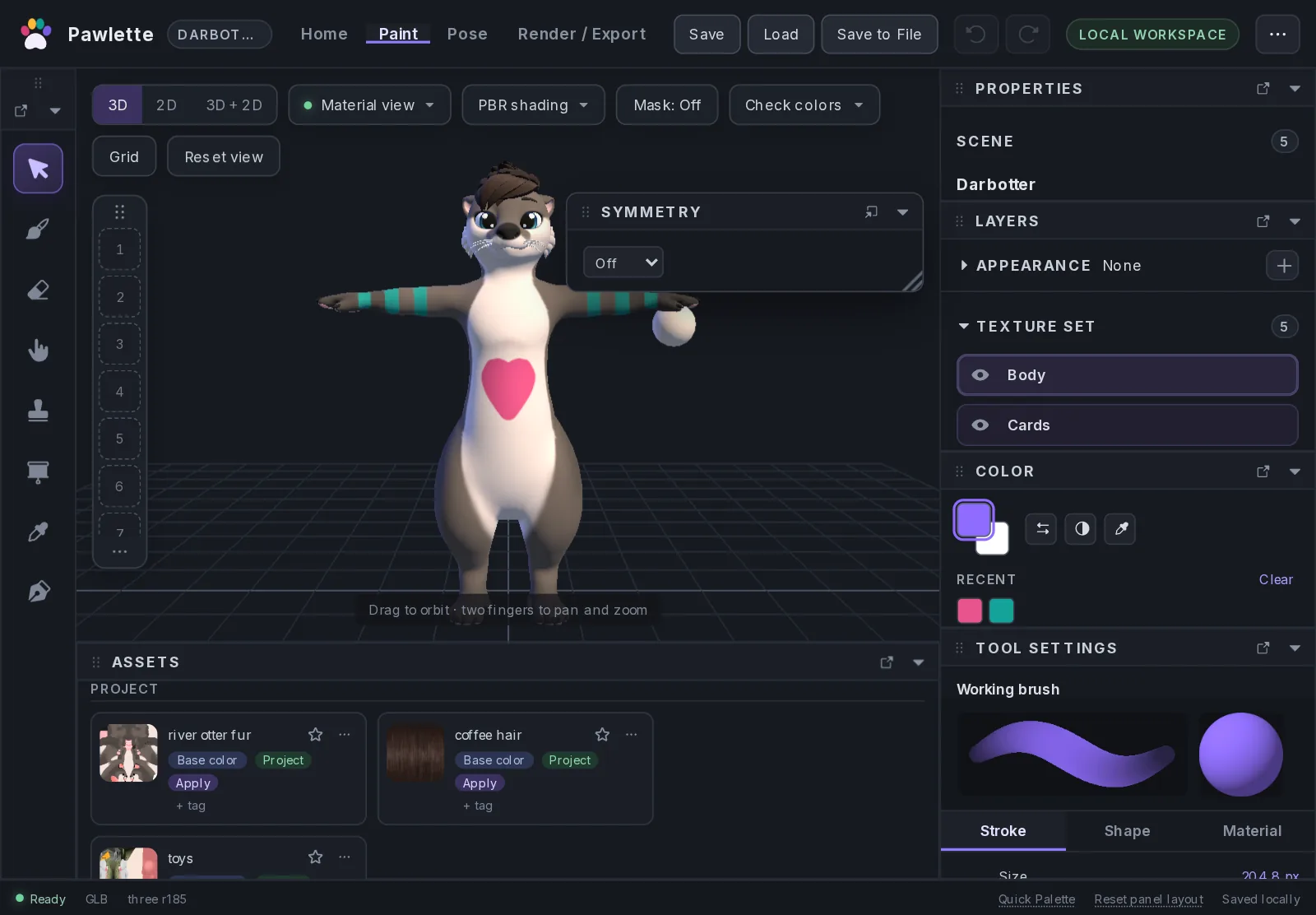
The Assets drawer along the bottom of the Paint workspace is where your brushes, materials, textures, procedurals and Smart Masks live, next to the free Public library that ships with Pawlette. Anything you import goes here first, including Unity materials. From the drawer you drag assets onto the model, onto Tool Settings, or onto the Quick Palette.
Tabs and sources
The tabs are Brushes, Materials, Textures, Procedurals and Masks. Each tab shows every source together, grouped under a heading per source:
- Project: saved with this project only.
- My library: yours in every project in this browser. With a subscription it can also sync across devices.
- Public: the free brushes, materials and Smart Masks that ship with Pawlette.
- Community and Shared: libraries and shares from other people that you have added.
Chips at the top of the tab switch each source on or off; at least one stays on. Pawlette remembers your choice for each tab in this browser. A community library starts switched off until you add it.
Each tile carries a small tag saying where it comes from: Project, Mine, Public, Community or Shared. An item that is in more than one place is listed once, with a tag such as "Mine +1".
Each tile has a star for favorites and tags you can edit. Click a tag to search for it, use the search box, or turn on Favorites only. Search and favorites work across every source that is switched on.
Textures
Choose Add textures, or drop PNG, JPEG or WebP files on the drawer. The Import texture dialog asks for:
- Name.
- Texture type: Base color, Metallic, Roughness, Normal, Height, Ambient occlusion, Emissive, Opacity or Unknown.
- Destination: the project library or My library.
Drop several maps of one material at once, such as brick_albedo and brick_rough, and Pawlette offers to build a material from them.
How you use a texture depends on where you drop it:
- a base-color texture dropped on the model becomes a fill layer;
- dropped on a channel well in Tool Settings, it paints that channel;
- dropped on the Projection slot, it is projected;
- dropped on the Tip or Grain slot, it shapes the brush.
Details… in a texture's menu shows it full size and lets you change its type and tags.
Brushes
Your saved brush presets, including any imported Photoshop .abr brushes, plus the Public brushes. Click a tile to use it. Its menu can keep it in My library, or copy or move it between places.
The Public brushes are grouped under Painting, Wear, Character and Detail. Search matches a brush's name, group and tags, so "creature" finds Scales and Feathers. See the full list.
Many Public brushes come with a matching material, such as Scratches with Bare steel or Freckles with Freckle. Choose Use with … in the brush's menu to pick up the brush and its material together.
Materials
Saved materials: a value or texture for every channel. The Public library has over a hundred, all free to use:
- Measured materials: 32 colors and finishes from real-world measurements, including metals (gold, silver, copper, brass, iron, steel, aluminum, chromium, titanium and more), six skin tones, bone, eye white, blood and pearl, and surfaces such as rubber, car paint, porcelain, concrete, brick, marble, snow and sand.
- Texture materials: 46 CC0 materials from Poly Haven and ambientCG at 1K: fabrics, leathers, metals, wood, nature, plastic and rubber.
- Brush materials: the materials paired with the Wear, Character and Detail brushes, such as Rust bloom, Pore shadow and Rivet steel. Many carry relief that carves in or builds up as you paint.
Where you drop a material decides what it does:
- on the model: a fill layer over the texture set under the pointer. Apply on its tile does the same for the selected set;
- on the material slot above the Tool Settings tabs: the whole material, for the brush or the selected fill;
- on one channel's card: only that channel, so the material reads "… · Modified";
- on the Quick Palette: kept close at hand.
Using a Public texture material copies its textures into the project, as one undo step. Until then the drawer only loads its thumbnail.
Procedurals
Cloud noise is a generated pattern with Detail, Contrast and Seed settings. Drag it onto any channel well to paint or fill with noise.
Masks
Your project's Smart Masks and the Public ones, such as Edge wear, Cavity dirt and Grunge patches. Select a layer, then choose a Smart Mask to apply it. See Smart Masks.
Unity materials
Already have an avatar set up in Unity? Bring its materials across instead of rebuilding them.
- Drop a Unity
.matfile on the Assets drawer, together with its textures and their.metafiles. You can drop several files or a whole folder (up to 1,000 files). A.maton its own finds textures already in your library by their Unity IDs. - The Import Unity materials dialog lists each material with the channels it fills, any missing textures and anything Not imported. Change a material's name if you like.
- Choose Add to project or Add to My library.
Poiyomi Toon materials bring their base color, emission, opacity, occlusion and masks 1 to 4. Their decals 0 to 3 and emissions 1 to 3 become effects. Other shaders are read with Unity Standard's property names, plus URP and HDRP names for base color and emission. A material's normal map goes into the drawer as a normal texture.
You can also import a model's Unity materials when you create the project: drop the model in the Model file field together with its .mat, texture and .meta files, or their folders. Under Unity materials, Pawlette matches each of the model's materials to a .mat by name, and you can change any match. It proposes a target shader to suit, and sets up the materials, effects, alpha modes and hidden UV tiles as it creates the project.
If Pawlette does not know a shader, signed-in users can choose Send shader data to help add it. It sends only the shader's ID, keywords and property values, never your material names, texture IDs or images, and shows you exactly what will be sent first.
Sync and sharing
With a Patreon subscription and a signed-in account, the My library bar offers:
- Auto sync, which keeps your library in step across devices;
- Sharing…, which makes a share of brushes, materials and textures.
A share can be Members only or Anyone with the link, can be listed in the public directory, and carries a license such as CC0 1.0 or CC BY 4.0. To add a public share to your drawer, use Public shares on Home or Browse shares in the Textures tab. See Saving and projects.