Guide · Painting
Color and swatches
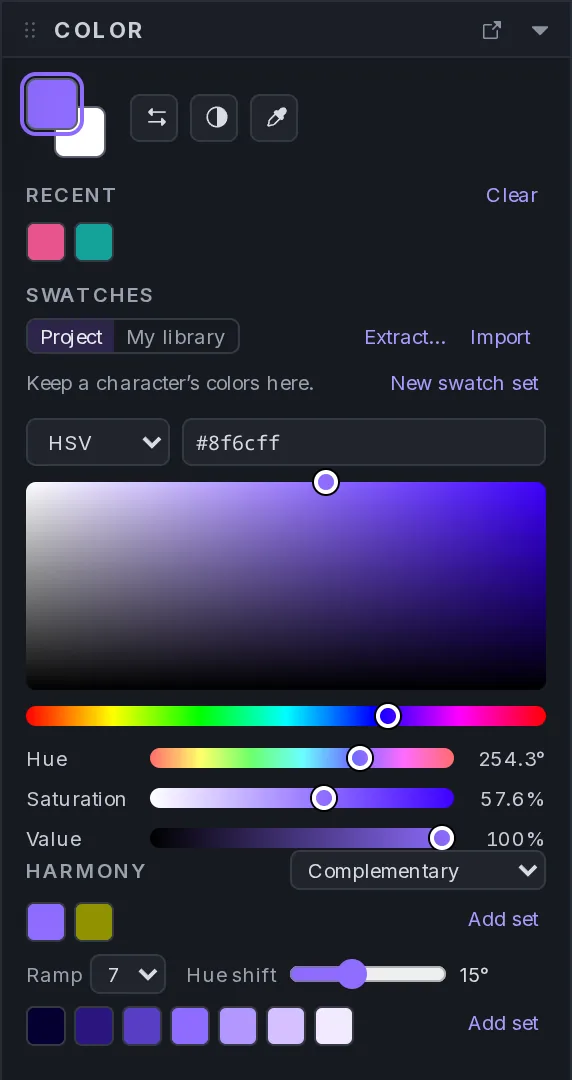
The Color panel holds the brush's foreground and background colors, the colors you have used recently, your swatch sets, and tools that build harmonies and ramps from the color you are painting with.
Foreground and background
The large chip is the foreground color, which the Brush paints. The small chip behind it is the background color.
- X swaps them.
- D resets them to black and white.
- I, or the eyedropper button, picks a color from the model.
Clicking any color control in the editor opens the same color selector. Color model switches it between HSV, RGB and OKLCH; OKLCH keeps lightness steady while you change hue. You can also type a hex value.
Recent colors
Every color you paint with or pick lands in Recent. Click one to use it again. Clear empties the list.
Swatch sets
Swatches are saved colors, kept in named sets. Switch between two places to keep them:
- Project: saved with this project. Use it for a character's palette.
- My library: follows you to every project.
Choose New swatch set to start one, then add colors to it. A set's menu can rename, duplicate or delete it, copy or move it between Project and My library, or export it as an Adobe swatch exchange (.ase), GIMP palette (.gpl) or hex list (.hex).
A swatch's own menu can make it the background color, or pair it with a shadow color for toon shading: Pair with suggested shadow or Pair with background as shadow. Each fill layer can link its color to a project swatch, so changing the swatch updates the fill.
Import palettes
Import reads Adobe .ase, GIMP .gpl, .hex and .txt lists, Krita .kpl and Procreate .swatches files.
Extract colors
Extract… builds a swatch set of 4 to 32 colors from any of these:
- a texture set as painted;
- a project texture;
- an image file (PNG, JPEG or WebP).
It is a quick way to start from reference art.
Harmonies and ramps
- Harmony suggests colors that go with the foreground: Complementary, Analogous, Split complementary, Triadic or Tetradic.
- Ramp builds 3 to 11 steps from dark to light. Hue shift turns the hue a little from step to step, so shadows and highlights are not just darker and lighter copies.
Click a color to use it. Add set saves the row as a swatch set.
Replace a color
To change a color you have already painted, open a paint layer's menu and choose Replace color…. Then:
- Pick the Channel.
- Set the Color to replace and the Replacement color.
- Set a Tolerance, then choose Replace.
It is one undo step.
Check colors
The Check colors menu in the viewport toolbar previews the model in grayscale (Value), which shows whether your contrast reads. It can also simulate Protanopia, Deuteranopia and Tritanopia. The check changes only the preview.